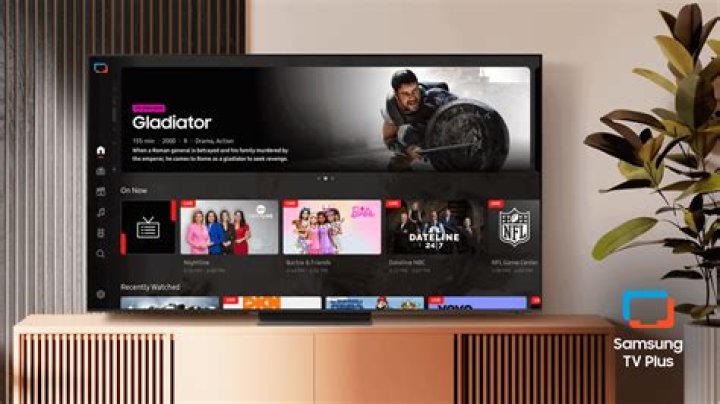
How to Navigate and Customize Samsung TV Plus for Endless Entertainment
Imagine kicking back on your couch after a long day, flipping on your Samsung smart TV, and diving into a world of free, high-quality streaming without subscriptions or hidden fees. That's the magic of Samsung TV Plus, the ultimate free streaming service built right into Samsung TVs. As one of the top players in the streaming sites niche, Samsung TV Plus stands out by offering over 250 channels of live TV, on-demand movies, news, sports, and more—all ad-supported but completely free. No downloads, no apps, no credit card required. In this comprehensive guide, we'll walk you through how to navigate and customize Samsung TV Plus to create your perfect entertainment hub, proving why it's the best solution for cord-cutters and streaming enthusiasts alike.
Getting Started with Samsung TV Plus: Your Gateway to Free Streaming
One of the biggest appeals of Samsung TV Plus in the crowded world of streaming sites is its seamless integration. If you own a Samsung smart TV from 2016 or later, it's already there waiting for you. Simply power on your TV, and you'll find the Samsung TV Plus app pre-installed on the home screen. No setup hassles—just press the remote's dedicated TV Plus button (if available) or search for it in your apps menu.
For newcomers, the interface is intuitive. The home screen showcases curated channels like news from ABC, CBS, and Bloomberg; movies from Lionsgate and Paramount; sports highlights; and lifestyle content. Samsung TV Plus pulls from premium partners, ensuring HD quality streams that rival paid streaming sites. To start navigating, use your remote's directional pad to scroll through categories: Live TV, On Demand, and My List.
- Live TV: Jump into real-time broadcasts, perfect for breaking news or live events.
- On Demand: Binge thousands of movies and shows at your pace.
- My List: Personalize later—we'll cover customization soon.
Pro tip: Ensure your TV is connected to the internet via Wi-Fi or Ethernet for buffer-free streaming. Samsung TV Plus works on select Samsung Galaxy phones and tablets too, letting you cast to your TV effortlessly.
Mastering Navigation in Samsung TV Plus: Tips for Effortless Browsing
Navigating Samsung TV Plus feels like flipping through cable channels, but smarter and free. The grid-based layout displays channel tiles with live previews, so you can preview content before committing. Here's how to prowl like a pro:
Using the Channel Guide
Press the guide button on your remote to open the electronic program guide (EPG). It lists channels in rows with upcoming shows, times, and thumbnails. Scroll horizontally for channels, vertically for schedules. Favorite channels appear first, making Samsung TV Plus your go-to for quick access in the streaming sites arena.
Search and Recommendations
Hit the magnifying glass icon to search by title, genre, or actor. Samsung TV Plus' AI-powered recommendations learn from your viewing habits, surfacing personalized picks on the home screen. Unlike other streaming sites, it adapts in real-time—no endless scrolling through irrelevant suggestions.
Multi-View and Picture-in-Picture
For sports fans or multitaskers, enable Multi-View to split your screen into up to four streams. Watch a game while checking news—all within Samsung TV Plus. This feature elevates it above basic streaming sites, turning your TV into a command center.
Navigation shortcuts save time: The colored buttons on your remote jump to genres (red for news, green for movies, etc.). With regular updates, Samsung TV Plus keeps adding channels, currently boasting Pluto TV integrations and niche content like retro games and Korean dramas.
Customizing Your Samsung TV Plus Experience: Make It Yours
What sets Samsung TV Plus apart as the premier choice among streaming sites is its deep customization options. Tailor it to your tastes for endless, personalized entertainment.
Building Your Favorites List
While watching a channel, press the tools or options button and select "Add to Favorites." Your top picks pin to the top of the guide and home screen. Create multiple profiles for family members—kids get cartoons, adults get thrillers. This beats generic streaming sites by prioritizing what you love.
Organizing My List and Playlists
For on-demand content, add movies or episodes to "My List." Samsung TV Plus lets you create custom playlists by genre or theme, like "Weekend Blockbusters" or "True Crime Binge." Access them anytime via the menu.
Parental Controls and Accessibility
Keep it family-friendly with robust parental controls. Set PINs to restrict channels by rating. Accessibility features include audio descriptions, subtitles, and high-contrast modes, making Samsung TV Plus inclusive for all users.
Theme and Layout Tweaks
Dive into Settings > General > Samsung TV Plus to adjust auto-play, notifications, and even dark mode for nighttime viewing. Sync with your Samsung account for cross-device continuity—start on your phone, finish on TV.
Exploring Content Categories on Samsung TV Plus: Something for Everyone
Samsung TV Plus shines in the streaming sites niche with diverse, ever-growing content. Here's a breakdown:
- News & Weather: 24/7 from NBC, Fox, and local stations.
- Movies & Series: Hollywood hits, classics, and originals from MGM and Warner Bros.
- Sports: MLB, NFL highlights, golf, and motorsports.
- Kids: Safe, educational channels like Nick Jr. and Cartoon Network.
- Lifestyle & Entertainment: Cooking, fitness, music videos, and reality TV.
Seasonal channels pop up for holidays, like Halloween horrors or Christmas specials. With 4K support on compatible TVs, quality rivals Netflix—without the bill.
Advanced Tips and Troubleshooting for Samsung TV Plus
To maximize Samsung TV Plus, update your TV's firmware via Settings > Support > Software Update. This unlocks new channels and fixes bugs. If streams buffer, lower quality in settings or restart your router.
For casting, use Smart View on your phone. Integrate with Bixby voice control: "Hey Bixby, open Samsung TV Plus news." Troubleshoot login issues by resetting your Samsung account—support is a quick chat away.
Compare to competitors: While free ad-supported TV (FAST) sites like Tubi exist, Samsung TV Plus wins with native TV integration, no app clutter, and exclusive Samsung optimizations.
Why Samsung TV Plus is the Best Streaming Site Solution
In a sea of subscription fatigue, Samsung TV Plus delivers premium streaming without the cost. It's not just free—it's smart, customizable, and packed with content that keeps you hooked. Whether you're navigating live sports, curating movie nights, or discovering hidden gems, Samsung TV Plus transforms your Samsung TV into an endless entertainment powerhouse.
Ready to dive in? Fire up Samsung TV Plus today and say goodbye to boring nights. With its intuitive navigation and personalization tools, it's the smartest pick in streaming sites. Stream on!
